 Farzana
This article will guide you through the process of setting up an employee statutory sick leave.
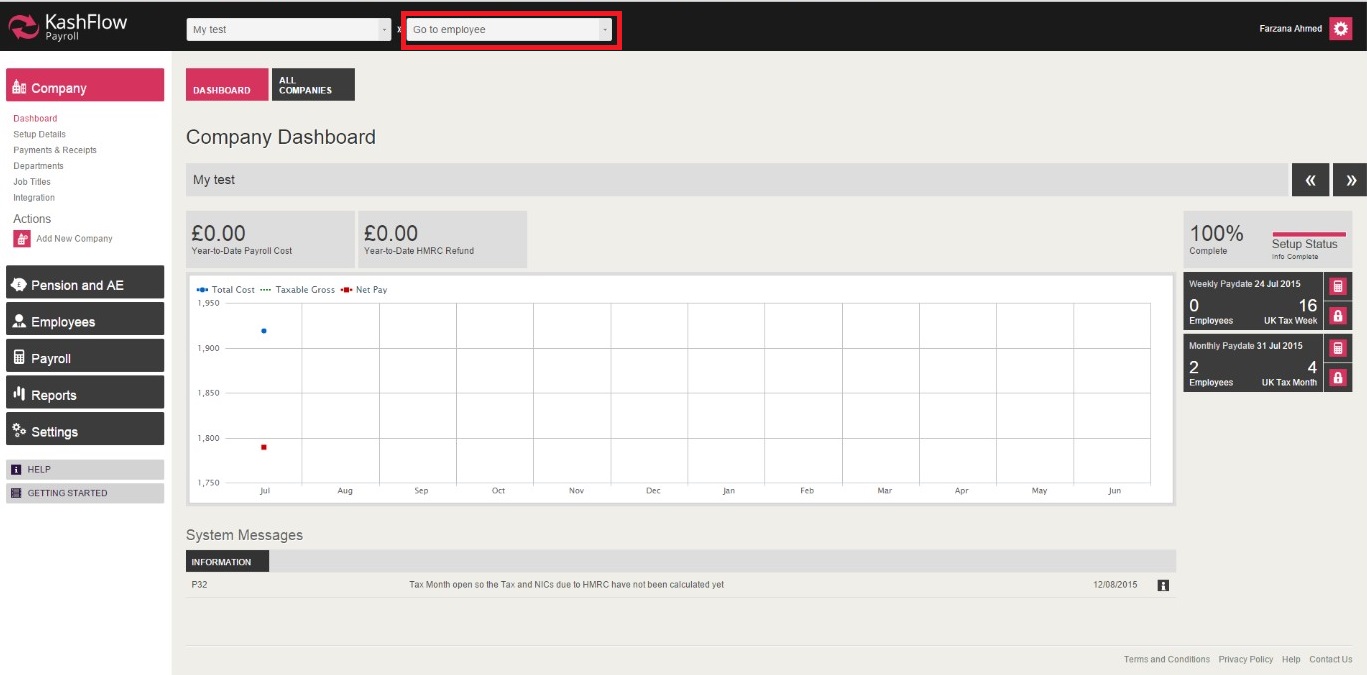
Step 1 - from company dashboard select the employee by clicking on drop-down ‘Go to employee’
Step 2 - once you have selected the employee, you will then be taken to the employee ‘overview’. From the employee drop-down, go to ‘Calendar & leave’.

Step 3 - Once in Calendar & leave, select the sick days and submit changes.
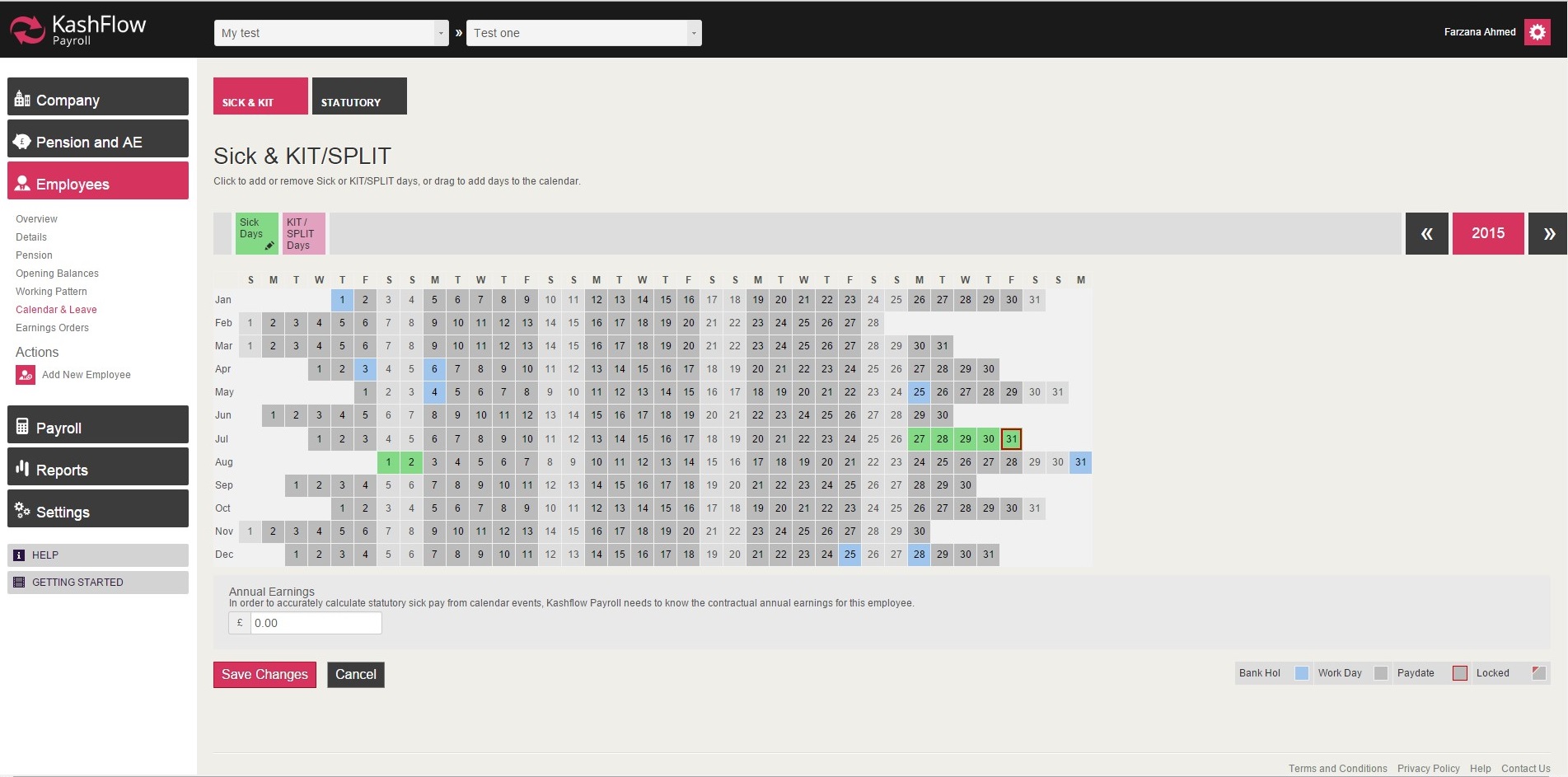
Note: When paying an employee sick, you will have to make sure the weekend days are included, in order for the sick to include weekends only. This is will not include sick pay for weekends, unless employee works weekends as well.
Step 4 - Once the above is complete, please click ‘Create Payslip’ ‘Save or Refresh’ in order for the sick pay amount to be included on payslip as ‘Automatic Items’.
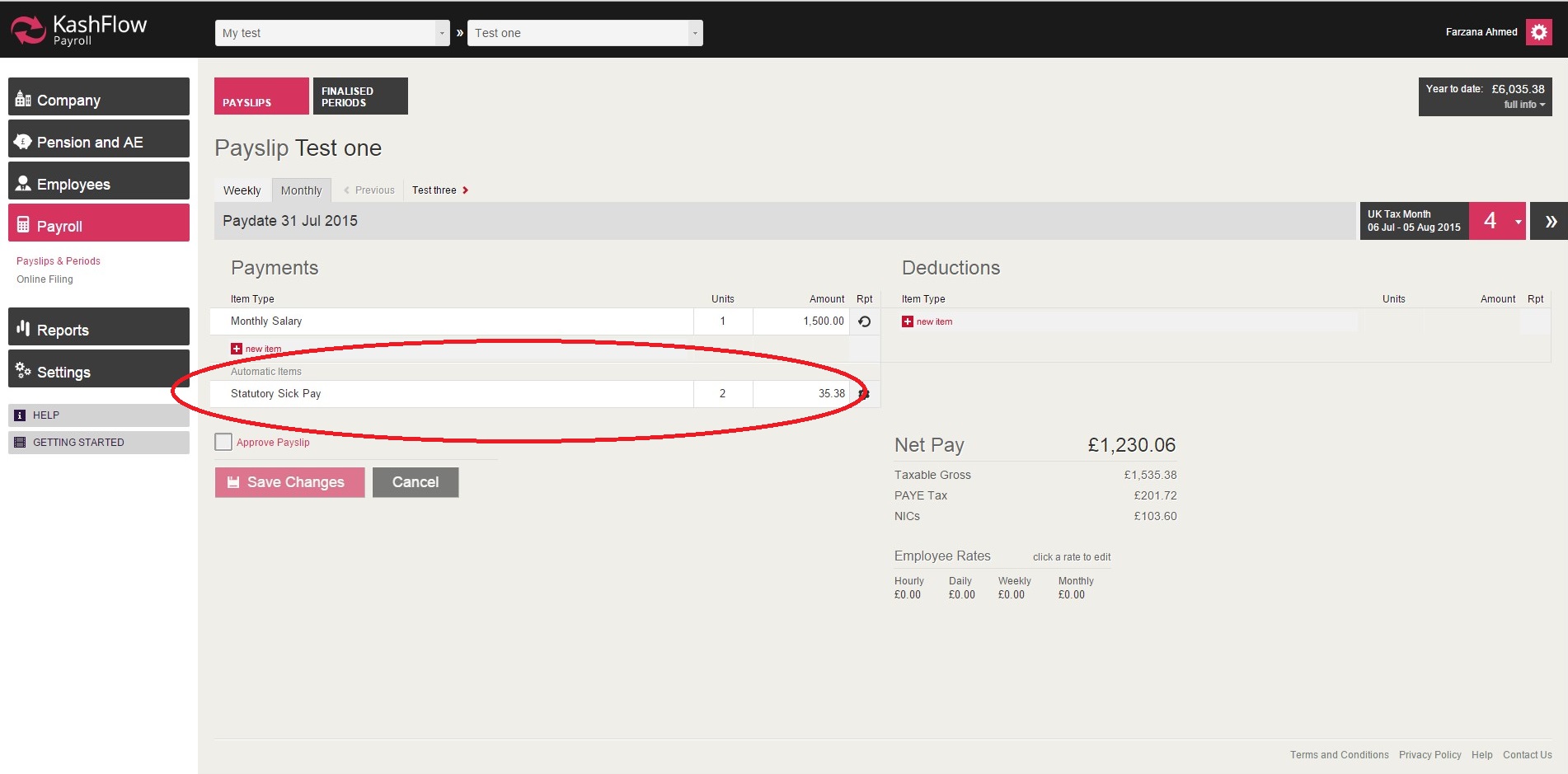
Important: Sick payments are paid to employee based on the number of days they have been off sick, in order to qualify for sick pay. For example, if an employee has been sick for 3 days, then they will not be eligible for any sick payment, this is because an employee must sit 3 waiting days before sick pay is given.
For more information, please visit: https://www.gov.uk/statutory-sick-pay
0 Comments